Download and export
You can take both the model and the generated code out of Studio at any time. The Tools menu groups what is available.
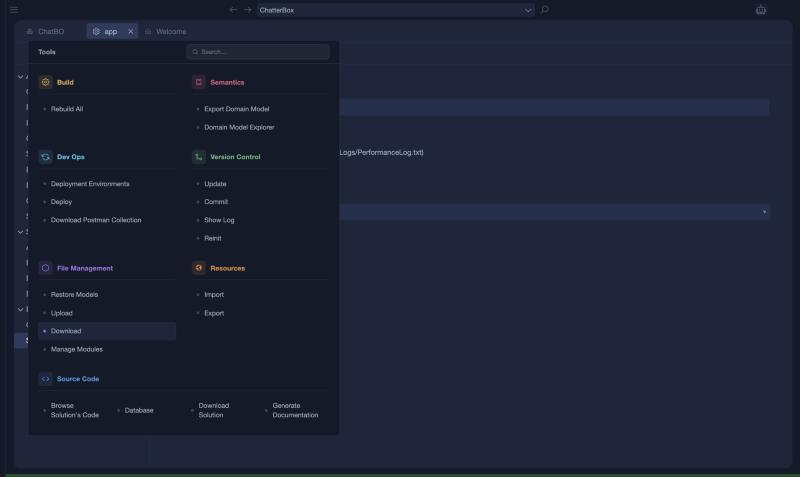
The Tools menu
| Group | Items |
|---|---|
| Build | Rebuild All |
| Semantics | Export Domain Model, Domain Model Explorer |
| Dev Ops | Deployment Environments, Deploy, Download Postman Collection |
| Version Control | Update, Commit, Show Log, Reinit. See Version Control |
| File Management | Restore Models, Upload, Download, Manage Modules |
| Resources | Import, Export |
| Source Code | Browse Solution's Code, Database, Download Solution, Generate Documentation |
Download the model
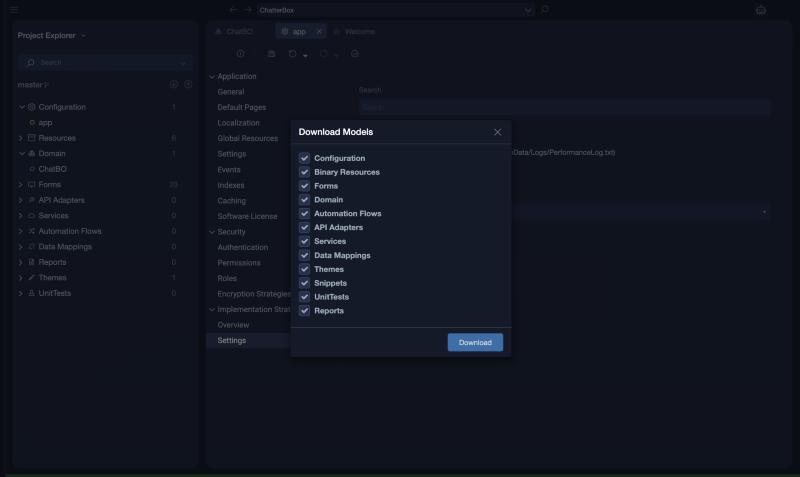
Download (under File Management) opens Download Models, where you choose which groups of models to download: Configuration, Binary Resources, Forms, Domain, Automation Flows, API Adapters, Services, Data Mappings, Themes, Snippets, UnitTests and Reports. All of them are selected by default.
Download the code
- Download Solution downloads the generated solution.
- Browse Solution's Code lets you read it in Studio first.
The code is ordinary source code. You can open it in your own editor, keep it in Git and deploy it on your own servers.
Generate documentation
Generate Documentation produces design documentation from the model.
Postman collection
Download Postman Collection (under Dev Ops) downloads a Postman collection for the services of your application.
Deployments
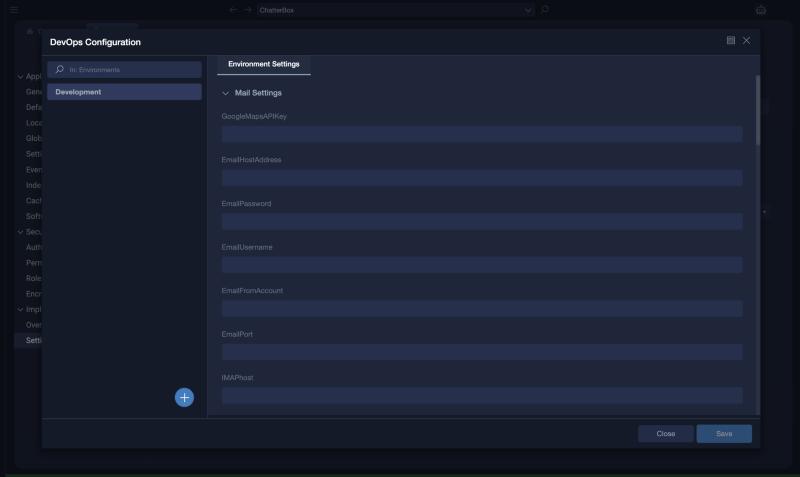
Deployment Environments and Deploy deliver the application. Studio keeps each deployment as a numbered version, listed in the Deployments tab of its environment. An environment delivers by file system (a ZIP), FTP or Git. See Deploying Applications.
Upload models
Upload (under File Management) lets you upload models into the open application, either with a file selector or by dragging and dropping files. An uploaded model is yours to use, change and extend.
Important
If a model with the same name already exists in the application, the upload fails. To replace the existing models, tick Overwrite Existing Models.
Manage modules
Manage Modules (under File Management) shows the zAppDev modules your application uses: whether a newer version of a module exists, their versions, and lets you update a module or add a new one.
Hint
You can share a downloaded zip, or any of its files, with another user, who can upload it into their own application.