Services
Services let you define and expose functionality of your application as a RESTful API, or as an MCP server that AI agents can use (see AI and MCP). Such components let your application interact with external systems and become part of a larger structure.
Creating an exposed service
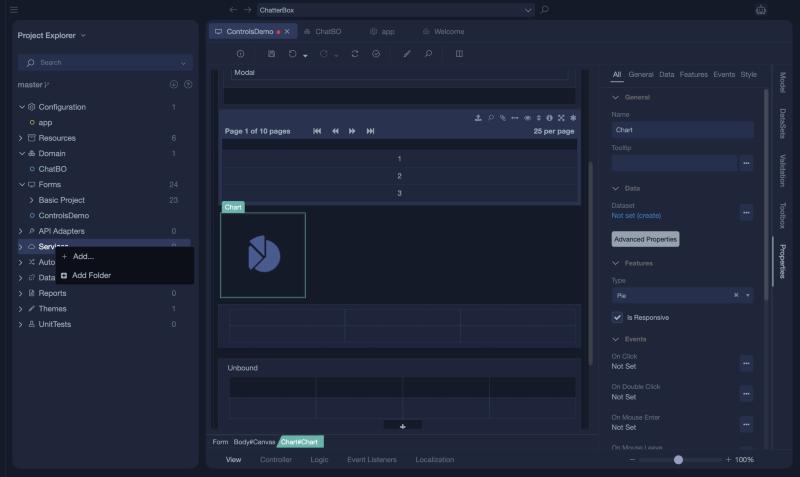
Right-click Services in the Project Explorer and choose Add...:
You can also use the New button of the Taskbar and choose the Service category. Both open the Add new item window.
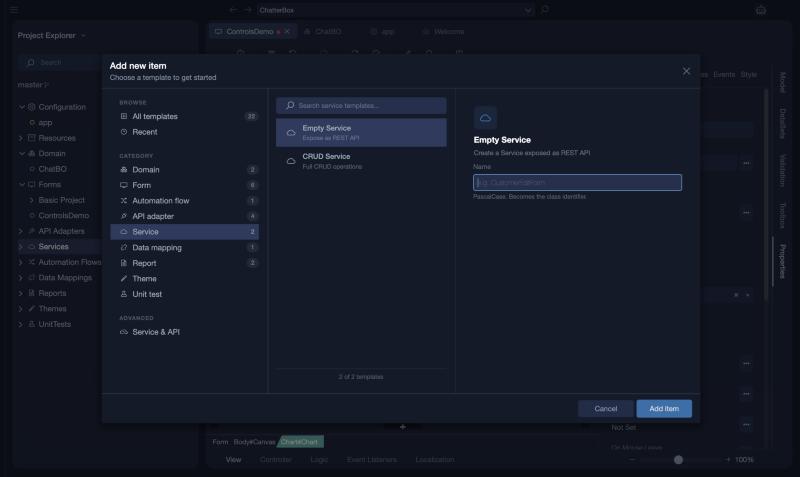
There are two templates: Empty Service (Expose as REST API), and CRUD Service (Full CRUD operations), which creates a service with the create, read, update and delete operations for a class. We start with an empty one to cover every step.
Note
With the CRUD Service template you choose the class, and Studio creates the operations and data contracts for you. You can then edit them like any other.
Enter a name for the service, for example ProductsApi, and click Add item.
Editor overview
The editor has three tabs, in the lower left corner:
Interface
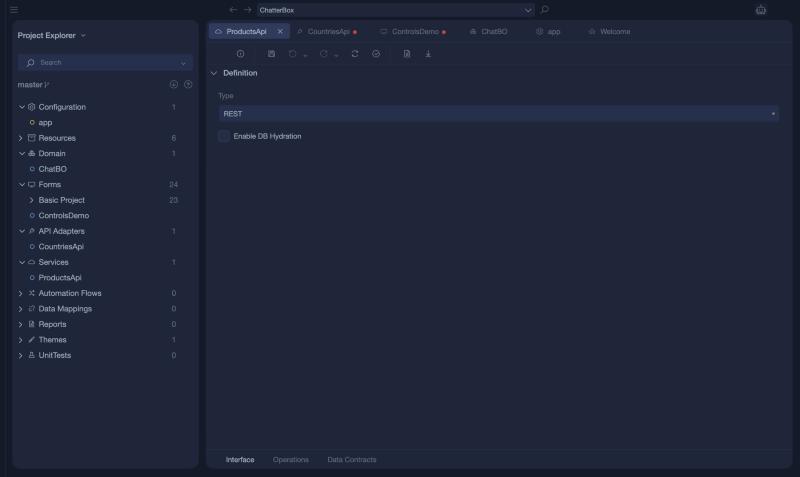
The Interface tab holds the Type of the service, REST or MCP, and Enable DB Hydration.
Operations
In the Operations tab you manage the endpoints of the service: their URL paths, parameters, code, caching and security. See Operations.
Data Contracts
The Data Contracts tab configures the data structures the service uses. You choose which properties of your classes are exposed in a response. See Data Contracts.
The toolbar of the editor also has Docs, which opens the online documentation page for testing the service (see Live Testing), and Postman Collection, which downloads a Postman collection for it.