Business Objects Editor
The modeling process starts with the representation of real-life entities and their relationships, using Business Objects.
In order to create a Business Object, we need to describe it in terms of three basic notions:
- First, we need to define the Classes that represent the Business Object’s concepts.
- Subsequently, we need to define the way these Classes are mapped to the Data Layer, so that we enable data to be persistent
- Finally, we may define the logic that governs the Business Object’s concepts by introducing constraints, validations and other operations.
New business object
To create a new business object, you can use one of two ways:
-
Right-click the Domain folder of the Project Explorer and choose Add...
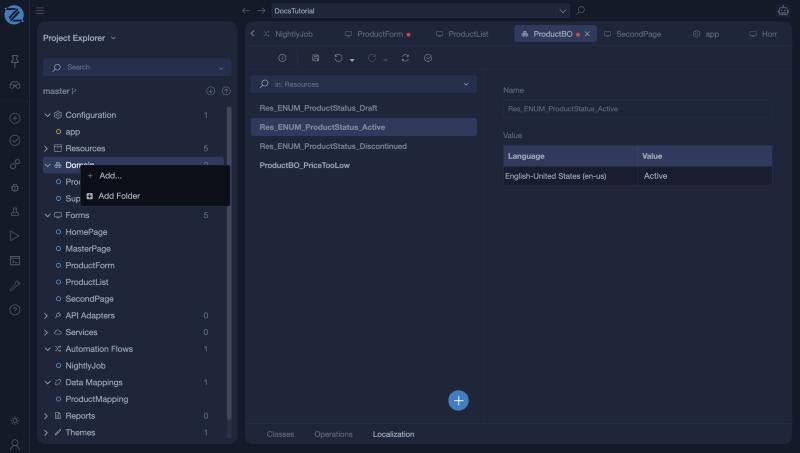
-
Click the New button of the Taskbar.
Both ways open the Add new item window on the Domain category. Select Empty Business Object, give it a unique name, such as ProductBO, and click Add item.
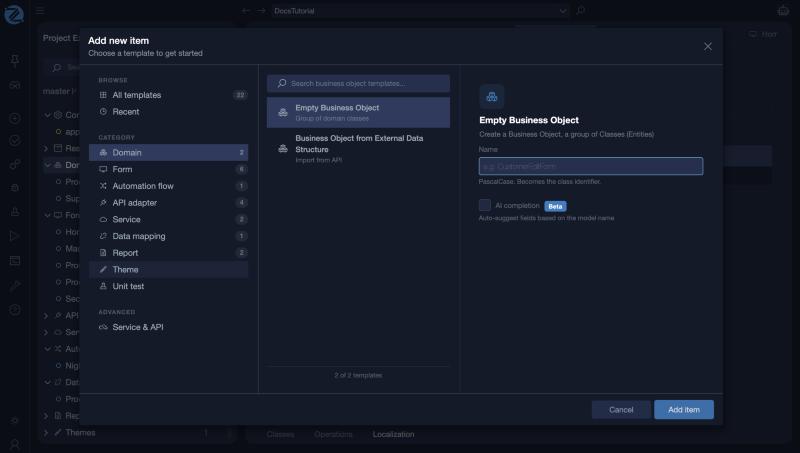
As soon as you do that, the business objects editor opens, allowing you to model your real-life entities and their relationships.
Business Object from External Data Structure
If what you wish to Model is a Structure that has come from an API adapter (e.g. a REST Service whose data you wish to map into your business object and/or save into your Database), then add a Business Object from External Data Structure, following the documentation here.
The Editor
The Business Object Editor is used to capture the semantics of business entities and their relationships by using classes and enumerations. There are three (3) basic types of Business Objects in a business object:
- Class: a representation of a business entity
- Enumeration: a variable type representing a restricted set of values
- Shadow Class: a Class whose initial definition exists in an other business object, linked to your current business object for easier modeling
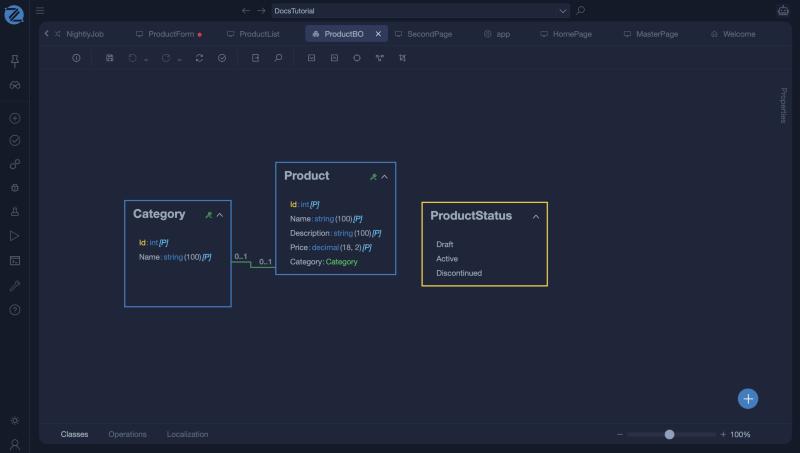
The diagram shows classes and the associations between them. The zoom control at the bottom right sets the size of the diagram, and the buttons of the toolbar help you arrange it (see Helpful Tools). Select a class, an attribute or an association and open Properties on the right to edit it.
By selecting a Tab from the bottom left part of the editor you can:
-
Design your Classes and Enumerations, as well as defined their Associations, rules, properties etc., modeling your Business structure
-
Set the Operations of a Class, to define your Business Logic as a set of its methods
-
Set the Localization Resources of your Model, to define the translations to be used for any written-word element.
At a Glance
| Section | Description |
|---|---|
| Class | Defining Business Entities as zAppDev Classes |
| Enumeration | Creating lists of restricted Values |
| Shadow Class | Organizing your Models and reusing Classes and Enumerations |
| Associations | Connecting two or more Classes/Enumerations with each other, creating Business Relationships and rules between them |
| Operations | Adding Operations (Methods) to Classes |
| External Data Structures | Defining whole Business Objects Modal using an External Interface's Structures (API) with a few clicks |
| Localization | Assigning Localized (translated and translatable) texts to Business Model Entities, Relationships, Operations etc. |
| Helpful Tools | Time saving tools that will help you with your Models' Organization and Look |