Form Group
A form group puts a label, an input and a message in one tidy unit. Use it for every field of a data entry form, so labels and inputs line up and validation messages have a place to appear.
Parts
A form group has three parts:
| Part | What it holds |
|---|---|
| Label | The text that names the field. |
| Input | The control the user types in: a Text Box, a Dropdown, a Date/Time Picker, or another input. |
| Description | A hint, or the validation message for the field. |
Properties
| Property | Description |
|---|---|
| Has Label Container | Shows the label part. |
| Has Description Container | Shows the part for hints and validation messages. |
| Horizontal Align | Places the label and the input side by side, instead of one above the other. |
Example
A Name field:
- Drag a Form Group onto the form.
- Put a Label with the caption Name in the label part.
- Put a Text Box bound to
Product.Namein the input part. - Mark the text box Required. If the user leaves it empty, the message appears in the description part.
Tips
- Studio's Data Entry forms create one form group for each attribute of a class.
- Use a Layout to put several form groups in columns.
In Studio
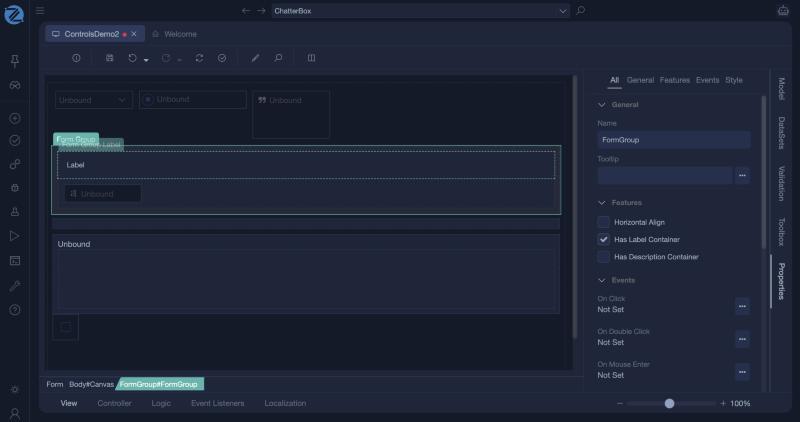
A form group with its label and an unbound text box, and its properties: Horizontal Align, Has Label Container (on by default), Has Description Container and the events.